# Getting Started

An introduction to the Chub frontend.

## What is Chub AI?

Chub is a platform that allows you to interact with characters through the use of Artificial Intelligence (AI) Large Language Models (LLMs). These models are accessed through the use of APIs which Chub streamlines into a convenient to use chatbot service.

Chub is **uncensored**. We do not restrict in any meaningful capacity the variety of characters that are allowed to be posted on the platform nor the type of interactions you are allowed to have with said characters.

Chub AI supports numerous APIs such as OpenAI (ChatGPT) or Anthropic (Claude), features such as chat trees, image generation, exporting/importing chats from existing services, and much more!

## Registering an Account

Registering for a Chub account is simple and only takes a few minutes.

1. Go to [chub.ai](https://chub.ai/) and click "Register" in the top right corner.
2. Enter your email address. This will be used sparingly, only for password recovery and our [subscription service](https://chub.ai/subscription).
3. Choose a unique username. Your username is public and used to represent you throughout Chub.
4. Create a strong, secure password. We encourage you to use a password manager to generate a random, unique password.
5. Your account is now registered and set up. You can log in using the credentials you created.

That's all there is to it. Once logged in, you'll be able to create your first character and start interacting right away.&#x20;

Please note that by using Chub AI's services, you are agreeing to our [Terms of Service](https://www.chub.ai/tos) and [Privacy Policy](https://www.chub.ai/privacy). Failure to follow these guidelines may result in account restrictions or termination.


# Character Creation

An overview of the character creation process and tutorial on how to create your first character on Chub AI.

Once you've registered an account and log into Chub AI you will see "Create Character" in the top right. Clicking this will take you to the Character Creator.

<figure><img src="https://2344291215-files.gitbook.io/~/files/v0/b/gitbook-x-prod.appspot.com/o/spaces%2FAKsJdjrPkq5TnML4IXif%2Fuploads%2FyAb1qTQNE7br5FPvARwV%2FScreenshot_2025_05_31-7.png?alt=media&amp;token=461e6605-01ea-4583-870f-ae0db453fc95" alt=""><figcaption><p>First "page" of the Character Creator.</p></figcaption></figure>

The Character Creator may seem intimidating at first due to the numerous fields that there are to fill out, but it is simple. The Character Creator is divided into two sections: Character Info and Character Definition.

### Character Info

Character Info is essentially the metadata for your character. It is how your character will be displayed and searched. Most of the fields here are optional but nonetheless recommended for you to fill out.

* Name (Required) - The name of your character. Previously, you were restricted in the choice of [characters](https://en.wikipedia.org/wiki/List_of_Unicode_characters) you could use when naming your character. That restriction has since been lifted after some structural changes.
* Avatar (Optional) - The image associated with your character. You can use any image you so choose, though please try to avoid NSFW images whenever possible, it spooks the payment processors.
* Tagline (Optional) - This is a brief description of your character so people can understand what your character is about. I'd recommend trying to make your Tagline into an elevator pitch, think about who your character is and why people should want to chat with them. Example: "A bubbly fairy who loves playing tricks on humans!"
* In-Chat Name (Optional) - In some cases, you may want the display name of the character in search to be different from its name when you're chatting with the character. For example, I may want the display name to be "Generic Anime Protagonist" whilst having the name while chatting be "Midoriya." This is what the In-Chat Name field is for.
* Creator's Note (Optional) - This is where you'd put in miscellaneous information about the character. This has no effect on the actual character and is just for show. Example: "Look, the fairy trickster thing is a bit of an exaggeration. She's actually quite lonely and looking for true friends."
* Tags (Optional) - These are categories that you assign to your character. These have no effect on the actual character and are just for searching. Chub AI has numerous user-generated tags to choose from. Examples: Female, Fantasy, Mischievous, OC. It is **highly recommended** that you tag your characters and tag them accurately. Please note that characters with less than three tags will be hidden in search.
* Type (Public, Private, or Unlisted) - You can choose whether your character is accessible publicly, only accessible to you, or accessible to those with the link to the character.
* Rating (SFW or NSFW) - You can determine whether or not your character has NSFW or otherwise inappropriate content. Think carefully about what your character is and circumstances you expect your character to be interacted in. Be as accurate when rating your character as possible.

### Character Definition

This is the actual meat and potatoes of your character. Everything you put here **WILL** affect your character and so it is crucial you get this right! This is going to be a simple overview of what these fields are. In other words, this will show you how to make a character. If you want to know how to make a *good* character, there have been [numerous people](https://rentry.org/meta_botmaking_list) that have covered that far better than I could.

* Description (Required) - This is where you will describe not just the character's personality but other characteristics as well, such as appearance, backstory, behavioral traits, etc. Really, *anything* can go in here! You can format this in any way you'd like, though plaintext is recommended. Example: "Scarlett is a mischievous fairy who loves playing tricks on humans and fairies alike. Though she pretends to be aloof, she secretly desires close companionship. Scarlett appears as a tiny, winged humanoid with fiery red hair, emerald eyes and a penchant for acorn caps and leaves."
* Initial message (Required) - Also referred to as the greeting, this is what your character will say verbatim at the start of a conversation. This can be as long or as short as you'd like it to be. This can have a huge effect on how the character behaves throughout the rest of the conversation, so try putting effort into ensuring your first message is *just right* for your purposes. `Example: "Why hello there! *Scarlett flutters down, peering at you curiously* And who might you be?"`
* Scenario (Optional) - The current circumstances and context of conversation and character. `Example: You're walking through an enchanted forest when you spot a tiny, winged creature following you. It's Scarlett, a mischievous little fairy who has taken an interest in you!`
* Example dialogs (Optional) - Example interactions between your character and you. This isn't strictly necessary but can be helpful in teaching the AI how to speak as the character if you have a specific way you want them to talk. While not necessarily required, it is good practice to separate example dialogs with "\<START>" headers. Use "\<START>" once at the beginning.

<figure><img src="https://2344291215-files.gitbook.io/~/files/v0/b/gitbook-x-prod.appspot.com/o/spaces%2FAKsJdjrPkq5TnML4IXif%2Fuploads%2FhsMXGpljsFhgceeBOQna%2FScreenshot_2025_05_31-13.png?alt=media&amp;token=ee70fc56-10ec-4731-bd5b-88b2c001334a" alt=""><figcaption></figcaption></figure>

#### Advanced Definitions

* Alternate greetings (Optional) - These are alternate greetings that your character could say at the start of a conversation. Users are then able to swipe through these greetings to choose one they like. When making alternate greetings it is **required** that you append "\<START>" at the beginning of each message so that we can know when each message ends and begins and properly display them.

<div><figure><img src="https://2344291215-files.gitbook.io/~/files/v0/b/gitbook-x-prod.appspot.com/o/spaces%2FAKsJdjrPkq5TnML4IXif%2Fuploads%2F4mtiZmlUVucuF9JChyT0%2FScreenshot_2025_05_31-9.png?alt=media&amp;token=2d955a65-374f-484d-803e-7c7048feffa5" alt=""><figcaption><p>An example of alternate greetings in use; featured bot is <a href="https://chub.ai/characters/crustcrunch/Esther">Crustcrunch's Esther</a> fanmake.</p></figcaption></figure> <figure><img src="https://2344291215-files.gitbook.io/~/files/v0/b/gitbook-x-prod.appspot.com/o/spaces%2FAKsJdjrPkq5TnML4IXif%2Fuploads%2Fo3o81yW8Txb2A2nHCLtV%2FScreenshot_2025_05_31-11.png?alt=media&amp;token=352b809f-8007-442a-ad13-2b9637fa6866" alt=""><figcaption><p>An example of alternate greetings in the character creator.</p></figcaption></figure></div>

* System Prompt (Optional) - The system prompt is the instruction sent to the AI at the beginning of the prompt. It can determine the style of the conversation, so to speak. Normally, the system prompt is determined by the user, but characters can have their own specific system prompts as well. The character-specific system prompt is only used if 'Use V2 Spec.' is enabled. See [Prompting](/docs/advanced-setups/prompting) for more details. `Example: "Write Scarlett's replies in a playful roleplay conversation with {{user}}. Have {{char}} tease and trick {{user}} in a friendly manner. Describe {{char}}'s emotions and actions using *. Include environmental details."`
* Post Hist Instructions (Optional) - The post history instructions are the instructions sent at the very end of the prompt to the AI. These post-history instructions are usually used for jailbreaks or, in the case of the character creator, instructions specific to the character to capture personality, etc. The character-specific post history instruction is only used if 'Use V2 Spec.' is enabled. Use {{original}} to supplement the user's post history instruction instead of overriding it entirely. `Example: "Have {{char}} ask {{user}} lots of questions to get to know them better. Describe {{char}} becoming more comfortable and dropping her guard with {{user}}."`

<figure><img src="https://2344291215-files.gitbook.io/~/files/v0/b/gitbook-x-prod.appspot.com/o/spaces%2FAKsJdjrPkq5TnML4IXif%2Fuploads%2FRKvozkPN6is0uBdgjGdY%2FScreenshot_2025_05_31-15.png?alt=media&amp;token=4b33c070-6820-487f-9071-24222353107a" alt=""><figcaption></figcaption></figure>

* Character's Note (Optional) - The character's note is similar to the system prompt or post history instructions, with the difference being that you can place it anywhere within n position of the chat history. A position of 1 would place near the end of the chat history (essentially functioning identically to a post history instruction). This is useful for information should have an influence on the AI but not so much that it needs to be at the very bottom. Numbers between 1 and 5 are recommended.
* Character Book (Optional) - A character book is a collection of defined keywords that, when activated, specific content about your character to the AI. See [Lorebooks](/docs/advanced-setups/lorebooks) for more information.

<figure><img src="https://2344291215-files.gitbook.io/~/files/v0/b/gitbook-x-prod.appspot.com/o/spaces%2FAKsJdjrPkq5TnML4IXif%2Fuploads%2Fxbu44aPkKcGQZ2UI6QPu%2FScreenshot_2025_05_31-17.png?alt=media&amp;token=87370e0b-90d9-4e19-9e32-546965ff634a" alt=""><figcaption></figcaption></figure>

Once you've finished creating your character, you can hit the "Create Character" button. This will create the character and take you directly to it.

<figure><img src="https://2344291215-files.gitbook.io/~/files/v0/b/gitbook-x-prod.appspot.com/o/spaces%2FAKsJdjrPkq5TnML4IXif%2Fuploads%2FFzEcQh0RxHWIkN6zMKG5%2FScreenshot_2025_05_31-18.png?alt=media&amp;token=60c0fe96-9a3c-42e4-9960-d4f314cc4190" alt=""><figcaption></figcaption></figure>

If you need to make further edits to your character, you can do so by hitting the "Edit" near the bottom-right, which will take you back to the character creator.

### Macros

There are a number of macros that you can use while making your character that perform special functions. These macros are encased in double curly braces.

* `{{user}}` - The name of whichever user is interacting with the character at the time. Can be inserted into the greeting. For example, let's say the user's name is "Mickey." If the greeting is "Hello {{user}}!" then that will be replaced with "Hello Mickey!" when Mickey interacts with the character.
* `{{char}}` - The character's name.
* `{{date}}` - The current system date of the {{user}}. Example: Sun Aug 13 2023.
* `{{time}}` - The current system time of the {{user}}. Example: 6:00:00 PM.
* `{{idle_duration}}` - The distance between the last time the {{user}} talked to the character and now. Not particularly useful in the greeting but could used in the definitions with interesting results. For example, "If idle duration ({{idle\_duration}}) is over a week, slap {{user}} for ignoring {{char}}", {{idle\_duration}} might be "4 hours."
* `{{random: [list of items]}}` - A random item from the list. For example: {{random: A,B,C,D}} will return one of the four letters at random.
* `{{roll: [number]}}` - Will roll a dX sided dice and return the result. Works with D\&D dice syntax as well (i.e XdY+Z).
* `{{weekday}}` - The day of the week, e.g. Wednesday.
* `{{n_messages}}` - The total number of messages in all branches of the chat.
* `{{level}}` - The number of messages in the current branch; the conversation depth.&#x20;
* `{{model}}` - The model being prompted against.
* `{{is_continue}}` - Whether the current prompt is to continue an existing message.

Because macros are processed with [Handlebars](https://handlebarsjs.com/playground.html), it's possible to do basic conditional logic with these values. Examples:

| Character Definition                                                          | Values                                            | Output                      |
| ----------------------------------------------------------------------------- | ------------------------------------------------- | --------------------------- |
| `{{#if (gte level 1000)}}Tell {{user}} to go to bed.{{/if}}`                  | <p>{<br>level: 2331,<br>user: "Bartleby"<br>}</p> | Tell Bartleby to go to bed. |
| `The attack {{#if (gt {{roll:4d6}} 15)}}is successful.{{else}}failed.{{/if}}` | Roll result: 16                                   | The attack is successful.   |

### Links

Here are some guides created by the community. Feel free to check them out to learn the intricacies of botmaking:

→ General:

* [NG's Pointers](https://rentry.org/NG_CharCard)
* [Moth's Tips](https://rentry.org/MothsBotMakingStuff)
* [The Great Coom's Creativity Guide](https://rentry.org/TGCsCreativityGuide)
* [Glub's Char Guide](https://rentry.co/glubs-char-guide)
* [StatuoTW's Guide](https://rentry.co/statuobotmakie)
* [eifersucht's Creating a Bot](https://rentry.org/creating-a-bot)
* [Hochi's Card Writing Tips (Archive)](https://web.archive.org/web/20230712205614/https://rentry.org/OnWritingCards)
* [Advanced card writing tricks](https://rentry.org/AdvancedCardWritingTricks)
* [Joystick's Tips](https://rentry.co/Joystick_Tips)
* [AbsoluteTrash's Bot Guide](https://rentry.co/absolutetrashs-bot-guide)
* [300+ Positive personality traits](https://rentry.co/25d5p)
* [380+ Negative personality traits](https://rentry.co/o8oxp6)

→ Formatting:

* [Alicat's Ali:chat Style](https://rentry.co/alichat)
* [kingbri's Ali:Chat Lite](https://rentry.co/kingbri-chara-guide)
* [Boner's Guide for Ali:Chat](https://docs.google.com/document/d/1PmU7-MA25P41Q45yU0CpA66Jra51LI-WI1PwSXn2FMs/edit#heading=h.4xz85vf7qjy5)
* [Pygwiki's PList + Ali:chat](https://wikia.schneedc.com/bot-creation/intro)
* [avakson's PList + Ali:chat Guide](https://rentry.co/plists_alichat_avakson)

→ Lorebooks:

* [StatuoTW's Lorebook Guide](https://rentry.co/statuobotmakie#lorebooks)
* [NG's Lorebook Guide](https://rentry.co/SillyT_Lorebook)
* [kingbri's World Book Encyclopedia](https://rentry.co/world-info-encyclopedia)

Here are some examples of competently made characters from creators within the Chub community. Feel free to check them out and rate them five stars if you enjoy them:

* [Esther (Creator: Crustcrunch)](https://venus.chub.ai/characters/crustcrunch/Esther)
* [Rory (Creator: Cutenotlewd)](https://venus.chub.ai/characters/cutenotlewd/Rory)
* [Goldie (Creator: Donquijanon)](https://venus.chub.ai/characters/donquijanon/Goldie)


# Just Chatting

An overview of the chat page, including features and settings.

<figure><img src="https://2344291215-files.gitbook.io/~/files/v0/b/gitbook-x-prod.appspot.com/o/spaces%2FAKsJdjrPkq5TnML4IXif%2Fuploads%2FFzEcQh0RxHWIkN6zMKG5%2FScreenshot_2025_05_31-18.png?alt=media&amp;token=60c0fe96-9a3c-42e4-9960-d4f314cc4190" alt=""><figcaption></figcaption></figure>

Once you've created a character or found one you like, you'll hit the purple "Chat with \[Character Name]" button to begin a chat with them.

<figure><img src="https://2344291215-files.gitbook.io/~/files/v0/b/gitbook-x-prod.appspot.com/o/spaces%2FAKsJdjrPkq5TnML4IXif%2Fuploads%2FxLnZCtl7O5X49v3A1Pe8%2FScreenshot_2025_05_31-20.png?alt=media&amp;token=c5c26033-8f3d-4c6a-8338-37b542b83818" alt=""><figcaption></figcaption></figure>

Doing so will take you to the chat page, where you can already see a message from our Test Character that simply says, "Test Character." This is the first message I was referring to earlier. If you click on the [hamburger button](https://en.wikipedia.org/wiki/Hamburger_button) on the top right will bring down the options menu.

<figure><img src="https://2344291215-files.gitbook.io/~/files/v0/b/gitbook-x-prod.appspot.com/o/spaces%2FAKsJdjrPkq5TnML4IXif%2Fuploads%2Fx9JMUsOt19dGut5AWhko%2FScreenshot_2025_05_31-21.png?alt=media&amp;token=22de56be-dc8a-4985-be96-d190c300fd47" alt=""><figcaption></figcaption></figure>

There are a number of features and settings to choose from, some of which will be covered more in-depth in later sections.

* Configuration - This is, technically, an optional but important step that you can do before you chat with a character. This is where you go to adjust the prompt structure, generation parameters, and text-to-speech features. Presets are collections of these settings. They can be uploaded publicly, kept private, or made unlisted. Presets are model-specific and can be switched between at any moment. See [Prompting](/docs/advanced-setups/prompting) and [API Connections](/docs/the-basics/api-connections) for more details.

<figure><img src="https://2344291215-files.gitbook.io/~/files/v0/b/gitbook-x-prod.appspot.com/o/spaces%2FAKsJdjrPkq5TnML4IXif%2Fuploads%2FK8fvuGaI0ogl99txdeEl%2FScreenshot_2025_05_31-22.png?alt=media&amp;token=d65bb7b6-6b87-44c2-9125-1bac876d96ed" alt=""><figcaption></figcaption></figure>

* Secrets - A necessary step before you can chat with a character. This is where you go to setup the API you'll be using to communicate with the character. See [API Connections](/docs/the-basics/api-connections) for more details.

<figure><img src="https://2344291215-files.gitbook.io/~/files/v0/b/gitbook-x-prod.appspot.com/o/spaces%2FAKsJdjrPkq5TnML4IXif%2Fuploads%2FAVnnRUUFvqpZOcTXMWya%2FScreenshot_2025_05_31-23.png?alt=media&amp;token=ee71f856-a511-41e7-97c6-2895bf426933" alt=""><figcaption></figcaption></figure>

* Chat Settings - Where you can add characters to the chat, attach a [Lorebook](/docs/advanced-setups/lorebooks) to the chat, attach [Stages](/docs/stages/overview) to the chat, and export the chat as a JSONL (SillyTavern), PNG, or Text file.

<figure><img src="https://2344291215-files.gitbook.io/~/files/v0/b/gitbook-x-prod.appspot.com/o/spaces%2FAKsJdjrPkq5TnML4IXif%2Fuploads%2FT0rQsMqAKaCnzjxxQtPC%2FScreenshot_2025_05_31-24.png?alt=media&amp;token=86ca42e4-cda0-4036-9189-a9ec7ba2cd43" alt=""><figcaption></figcaption></figure>

* Character Settings - Here, you can make changes to the definitions of the character you're interacting with, regardless of if it's your character or another's. Such changes only apply to your specific chats and nowhere else. If you're the owner of the character, you can update the character directly through here as well.

<figure><img src="https://2344291215-files.gitbook.io/~/files/v0/b/gitbook-x-prod.appspot.com/o/spaces%2FAKsJdjrPkq5TnML4IXif%2Fuploads%2FyuvIq1Rv4NqaXb73Gdz4%2FScreenshot_2025_05_31-25.png?alt=media&amp;token=88a2a2ab-8cd6-4961-bd2b-f3263dbc46aa" alt=""><figcaption></figcaption></figure>

* Chat Memory - This is where you either manually enter a summary of the conversation thus far or have the AI generate one. Either way, the summary will be sent to the AI as additional context for the conversation. When it comes to generating summaries, we use a method similar to the [Aisu Auto Summarizer](https://rentry.org/AisuAutoSummarizer). Meaning, we only summarize the messages that are out of context (aka messages that the AI no longer remembers).

<figure><img src="https://2344291215-files.gitbook.io/~/files/v0/b/gitbook-x-prod.appspot.com/o/spaces%2FAKsJdjrPkq5TnML4IXif%2Fuploads%2FqjhrsRa5RZdy6GnnfwIY%2FScreenshot_2025_05_31-26.png?alt=media&amp;token=d85f31c5-a3b6-4e49-8538-aaad3a3dbf29" alt=""><figcaption></figcaption></figure>

* New Chat - Rather self-explanatory. Creates a new chat between you and the character.
* All Chats - Displays all the chats you've had with that character.
* Share/Unshare Chat - This will create a link to an anonymized version of the chat you had between you and the character that you can share with friends. The chat will also be viewable from the "shared public chats" section of that particular character. If you've accidently shared a chat or otherwise just want to make it private again, you can hit the button again.

<figure><img src="https://2344291215-files.gitbook.io/~/files/v0/b/gitbook-x-prod.appspot.com/o/spaces%2FAKsJdjrPkq5TnML4IXif%2Fuploads%2FCMl9cXLYVZRfldWjsVQI%2FScreenshot_2023_08_20-8.png?alt=media&amp;token=d2092f77-33a6-40d1-9d16-2cef724adcdc" alt=""><figcaption></figcaption></figure>

* View Full Chat Tree - Chub AI is unlike **any other frontend out there** in that we support full tree branching of chats, similar to what you would get when using ChatGPT. This is useful if you want to go back and follow a different path if you like more than one swipe, or for making choose-your-own-adventure cards.

<figure><img src="https://2344291215-files.gitbook.io/~/files/v0/b/gitbook-x-prod.appspot.com/o/spaces%2FAKsJdjrPkq5TnML4IXif%2Fuploads%2FpTTI8MKVNdTsU92oRsOj%2FScreenshot_2023_08_20-9.png?alt=media&amp;token=b7c7c50b-df9d-4e62-a18e-e597926e37c3" alt=""><figcaption></figcaption></figure>

* View Discussion - If your chat is public, this will display any user comments.

Next to the character's name is an edit icon and a radio icon. These are the Sharing Settings and Go Live feature, respectively.

<div><figure><img src="https://2344291215-files.gitbook.io/~/files/v0/b/gitbook-x-prod.appspot.com/o/spaces%2FAKsJdjrPkq5TnML4IXif%2Fuploads%2F5lmsJPUxRZcMJfi9JWu1%2FScreenshot_2025_05_31-28.png?alt=media&amp;token=dc557911-c022-4c53-acd3-36cb0d4a1234" alt=""><figcaption></figcaption></figure> <figure><img src="https://2344291215-files.gitbook.io/~/files/v0/b/gitbook-x-prod.appspot.com/o/spaces%2FAKsJdjrPkq5TnML4IXif%2Fuploads%2FJjOq92QaI0rcCY5V23Jo%2FScreenshot_2025_05_31-27.png?alt=media&amp;token=5710644a-06a5-45dd-9794-8f6669f91b20" alt=""><figcaption></figcaption></figure></div>

* Share/Unshare Chat - This will create a link to an anonymized version of the chat you had between you and the character that you can share with friends. The chat will also be viewable from the "shared public chats" section of that particular character. If you've accidently shared a chat or otherwise just want to make it private again, you can hit the button again.
* Chat Name - By default, the name of the chat is the same name as the character. You can change this for organizational purposes.
* Chat Tagline - If your chat is public, this is what the description will be.
* Go Live - This is a feature in subscriber-only beta as of the moment. Anyone can join, but for now only subscribers can host.

At the left side of the chat input box, there is kebab menu that contains additional features.

<figure><img src="https://2344291215-files.gitbook.io/~/files/v0/b/gitbook-x-prod.appspot.com/o/spaces%2FAKsJdjrPkq5TnML4IXif%2Fuploads%2FJtgLCABNG83x5NFvVorz%2FScreenshot_2025_05_31-29.png?alt=media&amp;token=6ac64366-5b80-408f-9006-af6b7e5c50f5" alt=""><figcaption></figcaption></figure>

* Change Persona - This is where you can add persona, switch personas, or edit personas.

<div><figure><img src="https://2344291215-files.gitbook.io/~/files/v0/b/gitbook-x-prod.appspot.com/o/spaces%2FAKsJdjrPkq5TnML4IXif%2Fuploads%2Fu8nrDCzN3JDgTLcg3Nj2%2FScreenshot_2025_05_31-30.png?alt=media&amp;token=e24a2f09-be2b-4fb8-b950-fc288e60d4de" alt=""><figcaption></figcaption></figure> <figure><img src="https://2344291215-files.gitbook.io/~/files/v0/b/gitbook-x-prod.appspot.com/o/spaces%2FAKsJdjrPkq5TnML4IXif%2Fuploads%2FeCTzilHDmTMUipOBxaiM%2FScreenshot_2025_05_31-31.png?alt=media&amp;token=da3e2ff8-3196-471c-8bc7-fd02a07d796b" alt=""><figcaption></figcaption></figure></div>

* Impersonate Me - Prompts the AI to write your next response for you.
* Change Theme - Allows you to make a number of stylistic changes to the chat interface and site-wide.

<figure><img src="https://2344291215-files.gitbook.io/~/files/v0/b/gitbook-x-prod.appspot.com/o/spaces%2FAKsJdjrPkq5TnML4IXif%2Fuploads%2FIpfm1qibA3pF2Yc1BLb0%2FScreenshot_2025_05_31-32.png?alt=media&amp;token=77ee56d7-7cd1-4216-a2fc-99610bd7f4cc" alt=""><figcaption></figcaption></figure>

* Imagine - This is our image generation feature which can be accessed inside the chat.

<figure><img src="https://2344291215-files.gitbook.io/~/files/v0/b/gitbook-x-prod.appspot.com/o/spaces%2FAKsJdjrPkq5TnML4IXif%2Fuploads%2FZNU8oLfWi51Fd2fBqKc5%2FScreenshot_2025_05_31-33.png?alt=media&amp;token=d1e66a8c-2ba1-4028-b6bd-c92c56aff92d" alt=""><figcaption></figcaption></figure>


# API Connections

An overview of the numerous APIs that can be used with Chub AI, including settings and configuration.

Chub AI leverages several AI and natural language processing APIs to power our character interactions. By connecting to these APIs, we are able to provide more intelligent, contextual responses from characters and a smoother overall experience.

Currently, Chub AI allows you to connect with the following APIs:

* OpenAI (PAID) - You can leverage OpenAI's GPT-4o, GPT-4.5, o4 models and more with either an API Key or the use of a reverse proxy. In the case of an API Key, you'll have to pay for your usage. Sign up at [platform.openai.com](https://platform.openai.com/) and get your API key at [account/api-keys](https://platform.openai.com/account/api-keys).
* [Mars](https://venus.chub.ai/subscription) (PAID) - This is our suite of **uncensored** language models finetuned on public datasets as well as our own proprietary data. It's important to note that this data does **NOT** include public or private chats taken from Chub AI. A Mars subscription is $20 a month with unlimited messaging as well as total integration into the Chub ecosystem. No managing keys or setting up servers, just subscribe and it'll connect seamlessly and automatically.
* Anthropic (PAID) - Similar to OpenAI, Anthropic's Claude models can be leveraged with either an API Key or the use of a reverse proxy. Sign up at [console.anthropic.com](https://console.anthropic.com/) and get API your key at [settings/keys](https://console.anthropic.com/settings/keys).
* Kobold/Ooba (FREE\*) - APIs that connect to Large Language Models hosted on local machines and shared by individuals on the internet. Free if being hosted from your machine with the only limitations being hardware requirements. Otherwise, you can rent a GPU via Vast AI or other cloud computing services.
* OpenRouter (PAID) - Third-party service that routes text generation through OpenAI, Anthropic, Google, and other models. Sign up at [openrouter.ai](https://openrouter.ai/) and get your API Key at [openrouter.ai/keys](https://openrouter.ai/keys). Usage rates will vary by model.
* Google (PAID) - Google's current iteration of generative AI models, Gemini. Sign up at [ai.google.dev](https://ai.google.dev/) and get your API Key at [aistudio.google.com/apikey](https://aistudio.google.com/apikey).
* NovelAI (PAID) - Third-party service that offers AI models optimized for writing. Sign up at [novelai.net](https://novelai.net/) and get your API Key in the User Settings at [novelai.net/stories](https://novelai.net/stories).

### API Settings

<figure><img src="https://2344291215-files.gitbook.io/~/files/v0/b/gitbook-x-prod.appspot.com/o/spaces%2FAKsJdjrPkq5TnML4IXif%2Fuploads%2FAVnnRUUFvqpZOcTXMWya%2FScreenshot_2025_05_31-23.png?alt=media&amp;token=ee71f856-a511-41e7-97c6-2895bf426933" alt=""><figcaption></figcaption></figure>

All APIs support the same three settings, with additional caveats here and there:

* System Prompt - Also referred to as the Jailbreak Prompt or Pre-history instructions, the system prompt is the very first thing sent to the AI (before the chat history, hence the name). It is, generally speaking, the instructions that define the genre and style of the conversation.&#x20;
* Post History Instructions - The post history instructions are the very last thing sent to the AI (after the chat history, hence the name). While not strictly necessary, due to the AI's natural bias towards text that comes near the end this can have major effects on the AI's response. This is often used when jailbreaking or ensuring that a certain formatting is adhere to, such as getting the AI to respond in CYOA-like format.
* Impersonation Prompt - This is the prompt that is used for the Impersonate feature. The Impersonate feature is the blue Robot icon near the left-side of the input box. The Impersonate feature writes your response for you and the Impersonation feature determine what criteria it adheres to.

### API Keys vs Reverse Proxies

We highly recommend using official API keys over third-party reverse proxies for security and ethical reasons. API keys are provided directly from the API owners and give you full control and transparency over usage and costs. Reverse proxies, on the other hand, are created by unauthorized third parties who gain access to your data and IP address. They may enable logging, leak your information, and use stolen API keys which you have no control over.

While reverse proxies are advertised as "free" to use, the proxy owners are shouldering the costs and could shut down access at any time. For privacy, security and reliability, we recommend using official API integrations and managing your own keys.

### Generation Settings

The AI models we connect to support various settings that can be adjusted to modify response generation:

* Temperature: Controls the randomness/creativity of responses. Higher values mean more random, creative responses. Lower values mean more predictable, less creative responses.
* Presence Penalty: Positive values penalize new tokens based on whether they appear in the text so far, increasing the model's likelihood to talk about new topics.
* Frequency Penalty: Positive values penalize new tokens based on their existing frequency in the text so far, decreasing the model's likelihood to repeat the same line verbatim.
* Top K: Only sample from the Top K options for each subsequent token. Used to remove 'long tail' low probability responses.
* Top P: In nucleus sampling, the cumulative distribution is computed over all the options for each subsequent token in decreasing probability order and cut off once it reaches a particular probability specified by Top P. You should either alter Temperature or Top P, but not both.

These are just a few of the settings that can be adjusted to customize response generation for your needs. Default settings are set based on our own testing, but you are free to experiment with different values to achieve your desired results.


# Prompting

An overview of prompting, what it is and how it works.

Prompting refers to the instructions we provide to AI models to generate character responses. The prompt consists of:

1. System prompt - The initial instructions that define the genre, style and context for the conversation. `For example, "Write {{char}}'s next reply in an immersive roleplay between {{char}} and {{user}}."`
2. Character definitions - The personality, scenario/setting and other details that define the character (including lorebook information and example dialogs).
3. Chat history - As much of the conversation between the user and character as will fit within the AI model's context length (memory). The AI uses this limited context to maintain continuity in the conversation. *Not* the full conversation up to the current point.
4. Post history instructions (optional) - Additional instructions provided after the chat history to further direct the AI's response. `For example, "End the response with a question for {{user}}."`
5. Prompt Note (Optional) - Inserts a section of text into the prompt at any position you desire. `For example, "[System note: Give {{char}} a Scottish accent regardless of if it fits within their character.]"`
6. Assistant Prefill (Optional) - Forces the AI to start their answer with the inserted text. May cause errors depending on the API, handle with caution.

There are two main ways to format the system prompt:

1. Normal - The straightforward instructions, without any macros this will be in the following order: system prompt, character definitions, chat history, post history instructions (if any), prompt note (depending on the position), assistant prefill (if any).&#x20;

   <figure><img src="https://2344291215-files.gitbook.io/~/files/v0/b/gitbook-x-prod.appspot.com/o/spaces%2FAKsJdjrPkq5TnML4IXif%2Fuploads%2F1BM7BI9J5CR7FZazuGcW%2FScreenshot_2025_05_31-36.png?alt=media&amp;token=795f3e53-6c17-45bd-8210-3c7cc7b054ad" alt=""><figcaption></figcaption></figure>
2. AGNAI (Prompt Macros) - Uses prompt macros to insert character definitions and re-order sections.&#x20;

   <figure><img src="https://2344291215-files.gitbook.io/~/files/v0/b/gitbook-x-prod.appspot.com/o/spaces%2FAKsJdjrPkq5TnML4IXif%2Fuploads%2FFIz1r0h3YT2ESp13Dlb2%2FScreenshot_2025_05_31-35.png?alt=media&amp;token=f852241b-eeb0-4ef7-a2f2-1ae76fe8f1f5" alt=""><figcaption></figcaption></figure>

Prompt macros:

* `{{personality}}` - Inserts the character's personality traits.
* `{{scenario}}` - Inserts the scenario/setting for the conversation.
* `{{memory}}` - Inserts lore or backstory details from the character's lorebook. See [Lorebooks](/docs/advanced-setups/lorebooks) for more details.
* `{{example_dialogue}}` - Inserts example dialogue showing how the character speaks.
* `{{summary}}` - Inserts the manually created or AI-generated summary placed in the Chat Memory. See [Just Chatting](/docs/the-basics/just-chatting) for more details.
* `{{profile}}` - Inserts your written user profile.

For example, "`{{personality}}` `{{memory}}` `{{example_dialogue}}` Write {{char}}’s next reply in an immersive roleplay between {{char}} and {{user}}." This would order the prompt as: character definitions, system prompt, chat history, post history instructions (if any).

The prompt macros provide more flexibility in how information is ordered and presented to the AI model. You can experiment with different prompt structures to achieve your desired responses and conversation flow.


# Lorebooks

An overview of lorebooks, what they are and how they can be used in Chub AI.

A lorebook is a series of defined keywords that, when activated, insert specific content into the prompt. They can be used to serve content to the AI about the character's backstory, setting, environment, etc without needing to have it be in character definitions taking up permanent token space.

A keyword is activated when it is mentioned in a message. For example, let's say one of the keywords in your lorebook is the word, "Apple." Let's further say that the content you have associated with the keyword is "{{char}} really loves Apples and will do anything to get one." By mentioning the word "Apple" in your message this then inserts that keyword into the prompt, thereby helping the AI understand how it should respond when Apples are mentioned.

When a lorebook is attached to a character, these are referred to as "Characterbooks."

### Lorebook Settings

There are two main settings for lorebooks, these can be found in "Chat Settings."

* Scan Depth - The number of messages that are scanned for matching keywords. Starts at the end of the chat history, so a scan depth of two would scan the last messages sent. Which, generally speaking, will be your message and the character's message.
* Token Budget - The number of tokens that lorebook info is allowed to take up. Once this amount is reached subsequent keywords will be ignored even if they are matching.

By default, Chub AI matches lorebook keywords with case-insensitivity and whole word matching. Going back to our "Apple" keyword example, this means that "apple" or "aPPle" would match for that keyword, but "Applebottom" would not.

### Creating a Lorebook

Lorebooks can be created with the [Lorebook Creator](https://chub.ai/create_lorebook), Character Books can be created within the [Character Creator](/docs/the-basics/character-creation).

<figure><img src="https://2344291215-files.gitbook.io/~/files/v0/b/gitbook-x-prod.appspot.com/o/spaces%2FAKsJdjrPkq5TnML4IXif%2Fuploads%2Fxbu44aPkKcGQZ2UI6QPu%2FScreenshot_2025_05_31-17.png?alt=media&amp;token=87370e0b-90d9-4e19-9e32-546965ff634a" alt=""><figcaption></figcaption></figure>

* Title - A title for the character book. Not used in prompting.
* Description - A description of the character book. Not used in prompting.
* Scan Depth & Token Budget - Specific scan-depth and token budget values for the character book. These values are overridden in favor of the user-defined values in the "Chat Settings" but will be used in the absence of.
* Recursive Scanning - Whether the character book should have recursive scanning enabled by default. Recursive scanning allows for entries to activate other entries or be activated by others, enabling complex interactions and dependencies between different lorebook entries.

#### Entries

<figure><img src="https://2344291215-files.gitbook.io/~/files/v0/b/gitbook-x-prod.appspot.com/o/spaces%2FAKsJdjrPkq5TnML4IXif%2Fuploads%2FcEtP0MtD78qQoZSXkr1c%2FScreenshot_2025_05_31-38.png?alt=media&amp;token=ce15209b-a93d-44c5-84bb-2c375c17410f" alt=""><figcaption></figcaption></figure>

When creating a character book entry, you're allowed to name the entry. That name is not used in prompting and is just for categorization purposes. The properties of an entry are as follows:

* Keywords - This is the most important aspect of a character book entry. These are the list of words that, when, mentioned, insert the content into the prompt.
* Secondary Keywords - These are, as the name suggests, additional keywords that may be required (or not) to insert the content into the prompt. If you have a keyword of "Apple" and a secondary keyword of "Banana", then what that means is that the content will only be inserted if both keywords can be found.
* Content - The actual information that gets sent to the AI. This is second most important part seeing as this is what you actually want the AI to learn/know about your character.
* Insertion Order - If multiple entries are inserted, insertion order determines which entries are inserted first. The lower the insertion order, the higher the entry is inserted (which in turn means the less the AI will 'pay attention' to it).
* Case Sensitivity - Whether the keywords and secondary keywords (if any) should be searched with case-sensitivity applied to them. If true, "apple" won't trigger the keyword "Apple."
* Priority - If the token budget has been exceeded, priority determines which entries will be removed first until the entries are within the token budget.
* Selective & Selective Logic - The first determines whether to require both keys and secondary keys to trigger an entry, the second determines *how* those keys are required to be triggered. If you have a keyword "Apple" and secondary keyword "Banana" with a Selective Logic of "NOT", what that translates to is "Insert this entry if 'Apple' is found and 'Banana' ISN'T found."
* Constant - Whether to always insert the trigger regardless of if the keys are found. This will always be inserted as long as their space in the token budget for the entry.
* Probability - The % chance the content will be inserted when the entry is triggered.

### Using Lorebooks

Lorebooks can be used by importing one into the chat. For character books, "Use V2 Spec." must be enabled. The steps to import a lorebook into the chat are simple:

1. Navigate to the "Chat Settings."&#x20;

   <figure><img src="https://2344291215-files.gitbook.io/~/files/v0/b/gitbook-x-prod.appspot.com/o/spaces%2FAKsJdjrPkq5TnML4IXif%2Fuploads%2FT0rQsMqAKaCnzjxxQtPC%2FScreenshot_2025_05_31-24.png?alt=media&amp;token=86ca42e4-cda0-4036-9189-a9ec7ba2cd43" alt=""><figcaption></figcaption></figure>
2. Find the lorebook you want to use from our [lorebook repository](https://www.chub.ai/lorebooks) and copy its path. You can do this selecting by "Copy Path", found in the kebab menu in the bottom-right of the card interface. For example: "lorebooks/bartelby/example-lorebook."
3. Insert the lorebook path into the field and select the lorebook. When it asks, "Are you sure you want to use this lorebook?", select "OK."


# Usage with Third-Party UIs

The Mars and Mercury APIs can be used in the same way as an OpenAI reverse proxy, and are compatible with any UI that supports them. Here are some configuration examples for various UIs.

(If you're looking for Swagger documentation for the API itself, see <https://inference.chub.ai>.)

<figure><img src="https://2344291215-files.gitbook.io/~/files/v0/b/gitbook-x-prod.appspot.com/o/spaces%2FAKsJdjrPkq5TnML4IXif%2Fuploads%2Fvcni6OFWbP6iPQz8EL0K%2Fphoto_2023-07-23_18-42-33.jpg?alt=media&amp;token=83e26df5-d6d0-44ad-8290-882fbf00c9c1" alt=""><figcaption><p>SillyTavern example configuration</p></figcaption></figure>

<figure><img src="https://2344291215-files.gitbook.io/~/files/v0/b/gitbook-x-prod.appspot.com/o/spaces%2FAKsJdjrPkq5TnML4IXif%2Fuploads%2FKyMhPiQmLDcylTrRqJ60%2Fphoto_2023-07-23_18-42-53.jpg?alt=media&amp;token=d415d293-392c-4ced-a185-b3f618088cfb" alt=""><figcaption><p>Agnaistic example configuration</p></figcaption></figure>

<figure><img src="https://2344291215-files.gitbook.io/~/files/v0/b/gitbook-x-prod.appspot.com/o/spaces%2FAKsJdjrPkq5TnML4IXif%2Fuploads%2FO80Pwv5TSyRNgCpjyykx%2Fphoto_2023-07-23_18-42-50.jpg?alt=media&amp;token=e7ee4e79-f68d-498b-90bf-997aa3bfd68b" alt=""><figcaption><p>Risu example configuration</p></figcaption></figure>

<figure><img src="https://2344291215-files.gitbook.io/~/files/v0/b/gitbook-x-prod.appspot.com/o/spaces%2FAKsJdjrPkq5TnML4IXif%2Fuploads%2F8Lv4zphQI3wD8hRZeU1Z%2Fphoto_2023-07-23_18-42-45.jpg?alt=media&amp;token=68d7f74b-e26a-481d-b4b3-7bbec3864dd5" alt=""><figcaption><p>Base Tavern example configuration</p></figcaption></figure>

<figure><img src="https://2344291215-files.gitbook.io/~/files/v0/b/gitbook-x-prod.appspot.com/o/spaces%2FAKsJdjrPkq5TnML4IXif%2Fuploads%2FDhqN8JJt3Vuabb1Fwd03%2Fphoto_2023-07-23_18-42-40.jpg?alt=media&amp;token=60592339-fa23-4de1-bcc2-cfb338e3b967" alt=""><figcaption><p>Kobold Lite example configuration</p></figcaption></figure>


# Overview

A Chub Stage is a software component written by other people that can be used within a chat. They are meant to add functionality like expression packs (showing a character's emotional state with a set of images), UIs for mini-games, special prompt handling, or even interacting with third-party APIs.&#x20;

<figure><img src="https://2344291215-files.gitbook.io/~/files/v0/b/gitbook-x-prod.appspot.com/o/spaces%2FAKsJdjrPkq5TnML4IXif%2Fuploads%2FY1PZhchcSsfccS1Pu7v4%2FScreenshot%202024-04-29%20at%2014-44-27%20A%20private%20chat%20with%20The%20Maze.png?alt=media&amp;token=b08377e1-160a-4e74-add0-616dff52da86" alt=""><figcaption><p>A stage for playing a maze.</p></figcaption></figure>

#### Is that secure? In other frontends there are warnings about third-party code.

Generally, yes. Stages are hosted from a separate domain and run in something called an inline frame ("iframe") that is sandboxed, meaning that it doesn't have any access to the cookies and local storage on Chub itself, i.e. it cannot access any of your keys, codes, or passwords. It's also prevented from certain hostile behaviors like opening browser alerts, and each stage is run from a different sub-domain so that each stage cannot access another stage's cookies or storage, either.&#x20;

Additionally, any stage marked with the 'Verified' symbol has been checked by the site developers for any hostile behavior.

<figure><img src="https://2344291215-files.gitbook.io/~/files/v0/b/gitbook-x-prod.appspot.com/o/spaces%2FAKsJdjrPkq5TnML4IXif%2Fuploads%2FBI2P2jcg2YAdxVcDtjnU%2Fimage.png?alt=media&amp;token=38ebcc19-c5dd-4cb2-9750-878d9a71b5b6" alt="" width="258"><figcaption><p>The 'Verified' marker for a stage.</p></figcaption></figure>

Still, no amount of sandboxing and isolation can prevent social engineering. ***Never provide any stage with your API keys or passwords to any site or service, including Chub itself.***


# Developing a Stage

Overview and table of contents

If you're familiar with React and/or TypeScript, you can write a stage yourself.

### Stage Use Cases

* Creating a UI for a world, character, or setting
* Making RPGs and other multimedia experiences
* Custom stat blocks that can do math and handle state correctly
* Specific input/output handling in code to deal with quirks of a particular model

### Why develop a stage instead of making something from scratch?

* **Intuitive Development:** The stages framework and platform was created with developers in mind from the ground up, resulting in as straightforward an interface as possible with a negligible learning curve.&#x20;
* **Cross-platform:** Stages are write once, run everywhere. When you commit, your stage is immediately built and available on the web, iOS and Android mobile devices, and the Vision Pro, with support for more platforms incoming.&#x20;
* **Multimedia:** Language, imagery, audio, and everything else can add up to a half-dozen or more APIs and interfaces that need to be set up, tested, monitored. With a stage, a unified interface for all of it is built in.
* **Audience Reach:** Many gaming and multimedia platforms ban GenAI content outright, or have userbases hostile to it. Chub has millions of people specifically here for generative AI.
* **Peace of Mind:** It has become a trope for passion projects using OpenAI and other APIs to get destroyed by hostiles reverse engineering it into a free proxy. If developed as a stage, it's not your problem, and you can focus on what matters.
* **Actively Developed Platform:** This is just the beginning. Scheduling, full VR/AR support, non-React implementations, and more are incoming.

## Stages Documentation Sections

* [Quickstart / Setup](/docs/stages/developing-a-stage/quickstart-setup) To get up and running from the template, locally or in an online IDE.
* [Concepts](/docs/stages/developing-a-stage/concepts) For a general overview of how things work.
* [Config / Metadata](/docs/stages/developing-a-stage/config-metadata) For specifics about the metadata and settings for stages.
* [State](/docs/stages/developing-a-stage/state) For how to keep track of state in a stage.
* [Examples / Resources](/docs/stages/developing-a-stage/examples-resources) For some example projects and links to other resources.
* [Future Directions](/docs/stages/developing-a-stage/future-directions) For the roadmap going forward.


# Quickstart / Setup

How to get up and running with the template stage project.

There are two main ways to develop a stage: locally or within a GitHub Codespace.

## Locally

### 1. Install node\@21.7.1

<details>

<summary>Windows</summary>

1. Download and install nvm-windows from <https://github.com/coreybutler/nvm-windows>.
2. Open a command prompt and run:

```
nvm install 21.7.1
nvm use 21.7.1
```

</details>

<details>

<summary>Linux and MacOS</summary>

```
curl -o- https://raw.githubusercontent.com/creationix/nvm/v0.35.2/install.sh | bash
nvm install 21.7.1
nvm use 21.7.1
```

</details>

### 2. Install yarn

```
corepack enable
yarn -v
```

### 3. Create a new repo using the template at <https://github.com/CharHubAI/stage-template> and download it.

<figure><img src="https://2344291215-files.gitbook.io/~/files/v0/b/gitbook-x-prod.appspot.com/o/spaces%2FAKsJdjrPkq5TnML4IXif%2Fuploads%2F5MO6aopuQxeiGDycJzt1%2Fimage.png?alt=media&amp;token=ebbc05cf-2fea-4f83-a9e3-b941d976516c" alt="" width="375"><figcaption></figcaption></figure>

```
git clone https://github.com/your-username/your-stage-name
cd your-stage-name
```

### 4. Run it.

```
yarn install
yarn dev --host
```

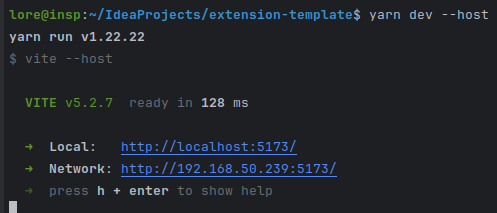
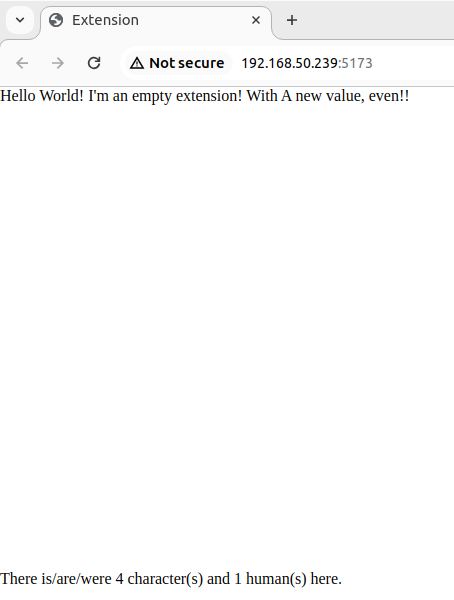
You should see this output on the command line, and this in a browser window.

<img src="https://2344291215-files.gitbook.io/~/files/v0/b/gitbook-x-prod.appspot.com/o/spaces%2FAKsJdjrPkq5TnML4IXif%2Fuploads%2F0dKF6MDE6XEvCwnLhL5l%2FScreenshot%20from%202024-04-11%2006-19-57.png?alt=media&amp;token=065daa60-b295-4958-bf7e-2b184f51211a" alt="" data-size="original"><img src="https://2344291215-files.gitbook.io/~/files/v0/b/gitbook-x-prod.appspot.com/o/spaces%2FAKsJdjrPkq5TnML4IXif%2Fuploads%2Ft3DcRddK4qqdra7qMDf6%2FScreenshot%20from%202024-04-11%2006-20-21.png?alt=media&amp;token=464987fb-aa6f-4bbb-a2ae-78613140655f" alt="" data-size="original">

* You can skip ahead to the other sections in this guide for a while to work on it, or go straight to the rest of the setup. To run in chat, you'll have to instead run:

```
yarn dev --host --mode staging
```

* When ready to push, for the build to submit to Chub, you'll have to [add an API key. ](#adding-a-write-token)

## In-Chat Live Coding vs the Test Runner

By default, when you run a stage in development, rather than waiting for a chat that may not exist it uses the test runner, which is in src/TestRunner.tsx. There are some example tests in the template, and the initialization data it uses is in src/assets/test-init.json.

If you'd rather edit with a live chat, it's most straightforward when running locally. Just run with the command:

```
yarn dev --host --mode staging
```

Once you're running locally, go to "Chat Settings", hit 'Staging URL', and put in the URL and refresh the page. This will only work with the localhost version of the URL.

<figure><img src="https://2344291215-files.gitbook.io/~/files/v0/b/gitbook-x-prod.appspot.com/o/spaces%2FAKsJdjrPkq5TnML4IXif%2Fuploads%2FRBVkeN5TXOphOp2uKX4Y%2Fimage.png?alt=media&amp;token=70c8f31b-7c19-4975-aa1d-03102f196faf" alt=""><figcaption></figcaption></figure>

## Adding an API Key

For your changes to push to Chub, you'll need to add a token to the secrets of your GitHub project. From the main page of your new project, go to 'Settings' -> 'Secrets and Variables' -> 'Actions' -> 'Repository secrets' -> 'New Repository Secret'.

<figure><img src="https://2344291215-files.gitbook.io/~/files/v0/b/gitbook-x-prod.appspot.com/o/spaces%2FAKsJdjrPkq5TnML4IXif%2Fuploads%2FTFPClsw1JovKhiGVIOiZ%2Fsettings.jpg?alt=media&amp;token=be47b07c-fea8-4710-875f-8a6ffc674dcc" alt="" width="375"><figcaption><p>Where the settings tab is located on the GitHub page for your project.</p></figcaption></figure>

<figure><img src="https://2344291215-files.gitbook.io/~/files/v0/b/gitbook-x-prod.appspot.com/o/spaces%2FAKsJdjrPkq5TnML4IXif%2Fuploads%2FSf221ypyqpuVGRKmAHIi%2Fadd-secret.jpg?alt=media&amp;token=c8cd58fd-7a8b-4126-ba02-dfcfbde07f5b" alt="" width="334"><figcaption></figcaption></figure>

* Add the token with the name 'CHUB\_AUTH\_TOKEN'. You can get a write token from <https://chub.ai/my_stages?active=tokens>. &#x20;

<figure><img src="https://2344291215-files.gitbook.io/~/files/v0/b/gitbook-x-prod.appspot.com/o/spaces%2FAKsJdjrPkq5TnML4IXif%2Fuploads%2FRY80yLp0sRUvyjS5sFQE%2Fadd-auth-secret.jpg?alt=media&amp;token=d9011708-30b4-468a-ad24-727a1e94b491" alt="" width="375"><figcaption></figcaption></figure>

* The next time you push, a stage project will be created in Chub and show up in your stages. To make this happen without a push, go to 'Actions' and rerun the failed push workflow:

<figure><img src="https://2344291215-files.gitbook.io/~/files/v0/b/gitbook-x-prod.appspot.com/o/spaces%2FAKsJdjrPkq5TnML4IXif%2Fuploads%2FQTvG2rtCFHr0VFnmhcnC%2Factions.jpg?alt=media&amp;token=f8a8a60b-9963-4ad1-8d97-b97ebf951e11" alt="" width="375"><figcaption></figcaption></figure>

<figure><img src="https://2344291215-files.gitbook.io/~/files/v0/b/gitbook-x-prod.appspot.com/o/spaces%2FAKsJdjrPkq5TnML4IXif%2Fuploads%2FUy0RZAa3loSjzJqw5wF8%2Factions-failed.jpg?alt=media&amp;token=82f21031-5c69-47ca-b29d-7d8adeae0dd2" alt="" width="375"><figcaption></figcaption></figure>

<figure><img src="https://2344291215-files.gitbook.io/~/files/v0/b/gitbook-x-prod.appspot.com/o/spaces%2FAKsJdjrPkq5TnML4IXif%2Fuploads%2FdAmPkZfHuPgOjCSOqkzg%2Frerun-action.jpg?alt=media&amp;token=d6a97a4d-a32d-4cf6-b021-a7b05aac676a" alt="" width="375"><figcaption></figcaption></figure>

#### That's it! Whenever you push changes, the GitHub Action will run and update the project in Chub.&#x20;

If you find the heavy comments in the template annoying, in any \*.ts\* file use the regex

```python
// .*|/\*\*\*.*?(\n|\r|.)*?\*\*\*/
```

in anything that supports regex editing (Intellij, et cetera) and delete them all.

In any \*.yaml, use:

```python
# .*
```


# Concepts

A high-level view of a stage project and how they fit in the context of a chat.

## Project Structure

A stage is, at its core, a React website, just a very small one.&#x20;

<pre><code>public/
    chub_meta.yaml  # Information like the stage's name.
src/
<strong>    Stage.tsx  # The core stage implementation.
</strong>                       # This is the main file to edit.
    TestRunner.tsx     # A runner for testing.
    assets/
        test-init.json    # Testing data for the Test Runner.
    index.scss         # CSS styling
    main.tsx           # The app's entry point.
    App.tsx
package.json        # Dependency management
.github/            # A utility file that creates the stage
    workflows/      # project in Chub, and builds and deploys it
        deploy.yml  # on push.
.eslintrc.cjs       # Linter configuration file
index.html          # The root HTML
tsconfig.json       # TypeScript configuration file
tsconfig.node.json  # TypeScript configuration file
vite.config.ts      # Vite configuration file
yarn.lock           # Freezes dependencies
</code></pre>

Communication between the chat UI itself and the stage site is handled by the stages library -- to develop you only need to be concerned with implementing the StageBase interface.&#x20;

## Where a Stage Exists in a Chat

If a stage is given a position of 'NONE' in the chub-meta.yaml, it doesn't display at all, instead running in the background. Otherwise, on a desktop or wide screen, it displays to the right of a chat, with the majority of the height of the window minus some padding.

<figure><img src="https://2344291215-files.gitbook.io/~/files/v0/b/gitbook-x-prod.appspot.com/o/spaces%2FAKsJdjrPkq5TnML4IXif%2Fuploads%2FytuAaDZgs9UY5acMDKbQ%2Fimage.png?alt=media&amp;token=2baa211f-6952-427e-8bb9-6f1a66cd4fc7" alt="" width="375"><figcaption><p>The stage's place highlighted with the browser's inspector.</p></figcaption></figure>

On mobile devices or narrow windows, the stage is given a smaller space between the chat header and messages, with the messages fading out in the background.

<figure><img src="https://2344291215-files.gitbook.io/~/files/v0/b/gitbook-x-prod.appspot.com/o/spaces%2FAKsJdjrPkq5TnML4IXif%2Fuploads%2Fb8rNE0M8c0BuVta44MB1%2Fimage.png?alt=media&amp;token=413de4c5-5a1d-4ea1-86d4-a4e6b0f8b7c5" alt="" width="124"><figcaption><p>Narrow-screen/mobile view.</p></figcaption></figure>

If there are multiple visible stages, they will share the space, with equal-height rows on wide screens and equal-width columns on narrow screens.

If your stage outputs system messages, they will display at the end of whatever message they were given in response to. System messages are visible to the human only, and not sent to the LLM.

<figure><img src="https://2344291215-files.gitbook.io/~/files/v0/b/gitbook-x-prod.appspot.com/o/spaces%2FAKsJdjrPkq5TnML4IXif%2Fuploads%2FY1PZhchcSsfccS1Pu7v4%2FScreenshot%202024-04-29%20at%2014-44-27%20A%20private%20chat%20with%20The%20Maze.png?alt=media&amp;token=b08377e1-160a-4e74-add0-616dff52da86" alt=""><figcaption><p>A stage that outputs system messages. The 'Available Directions' and lists that appear at the end of The Maze's messages are in fact from a stage attached to it. System messages are stored separately from language model responses and user messages, so that the language model doesn't get confused and try to generate stats blocks itself. Here, the stage can correctly show the available directions from a maze it has generated, the sort of geometric logic that a language model might have trouble with.</p></figcaption></figure>

## Stage Lifecycle and Communication

### Top-Down Communication Points

There are four places where a stage is called: initialization, before a message is sent to an LLM, after a response is received from an LLM, and when the user swipes or jumps from one place in the chat tree to another. The interface template file is heavily commented with explanations of each case.

#### Initialization

This corresponds to the 'constructor' and 'load' functions in the stage interface. When a chat is started, an initialization function is called in your stage with information about the chat and its participants. The stage has the opportunity to return some initialization-specific state information -- for a more detailed explanation of state types, see [State](/docs/stages/developing-a-stage/state).

#### Before a Prompt

This corresponds to the 'beforePrompt' function in the stage interface. When a user initiates a call to an LLM, the stage is first sent information on the prompt being sent, and has the chance to modify the user's message, save the stage's updated internal state, append something to the prompt, and attach a system message to the user's message.

#### After a Response

This corresponds to the 'afterResponse' function in the stage interface. When a response is fully received from the LLM, the stage has an opportunity to modify the response message, save the stage's updated internal state, and attach a system message to the bot's message.

#### On a Swipe or Jump

This corresponds to the 'setState' function in the stage interface. On a swipe or jump to a message that has already been seen previously, the stage is sent what its message-level state for that message was.  For example, in a stage that shows a character's expression pack, the message-level state has each character's current emotion. Note how this is only one of the three types of state -- see [State](/docs/stages/developing-a-stage/state) for more information.

#### Rendering

The 'render' function may be called at any time, and returns a ReactElement component. It's what your stage will look like. Try to avoid doing significant work inside this function.

### Bottom-Up Communication Points (Experimental/Unstable)

Additionally, there are functions a stage may call at any time. They are contained in the 'generator' member of your stage class, i.e. it can be called with `this.generator.someFunction()`. Its interface is here: <https://github.com/CharHubAI/chub-extensions-ts/blob/main/src/types/generation/service.ts>. Note: of these, only {'makeImage', 'imageToImage', 'removeBackground', 'inpaintImage'} are implemented, and none of them are stable. For this reason, `await`ing on any of them within any of the top-down communication points is not wise at this time. Best results are always with the 1:1 aspect ratio. Since these are ad-hoc generations meant to come back in a few seconds, there is a quality tradeoff. A proper imagegen and \*gen UI with tradeoffs balanced towards higher quality is under development.


# Config / Metadata

### The chub\_meta.yaml File

Every extension has a file at public/chub\_meta.yaml that contains extension metadata like its name, description, tags, et cetera. The file in the template (<https://github.com/CharHubAI/extension-template/blob/main/public/chub_meta.yaml>) is annotated with explanations of each field.

### User Configurations

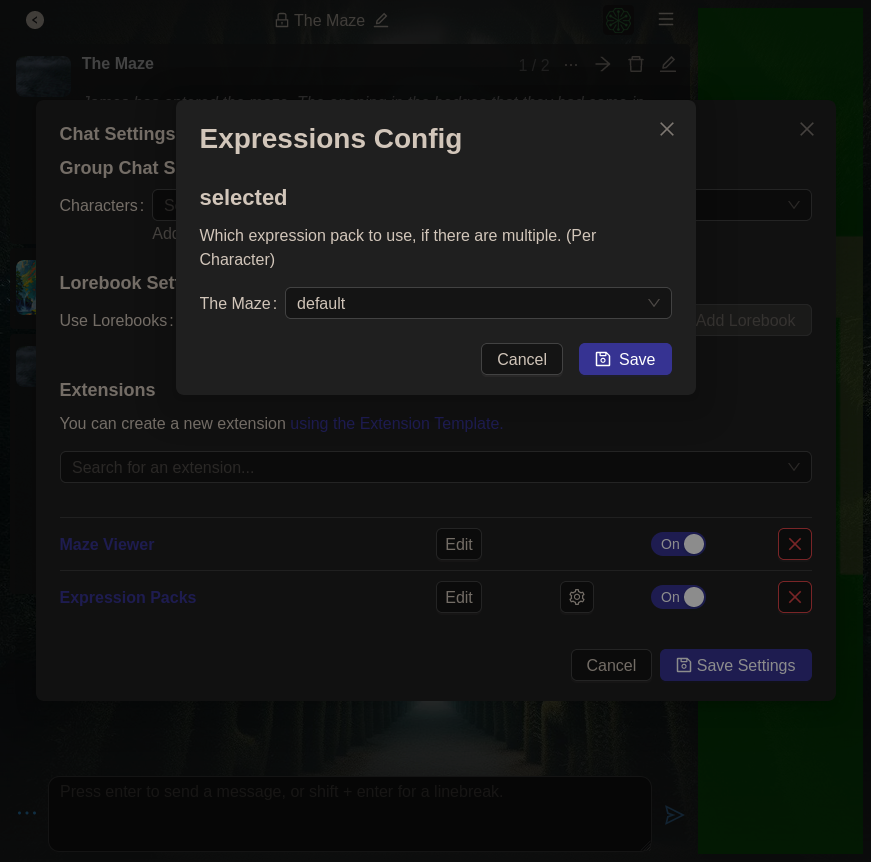
If you would like people to be able to configure your extension, for example, to set the size of a maze, you need to define a `config_schema` in your metadata yaml. This will allow the UI to generate a form for it.&#x20;

<figure><img src="https://2344291215-files.gitbook.io/~/files/v0/b/gitbook-x-prod.appspot.com/o/spaces%2FAKsJdjrPkq5TnML4IXif%2Fuploads%2FAW7IZQmMFehB0RLEukKC%2FScreenshot%202024-04-29%20at%2015-46-32%20A%20private%20chat%20with%20The%20Maze.png?alt=media&amp;token=354c3785-c9d4-43ba-a8b7-b398eaa89a51" alt="" width="188"><figcaption><p>A very simple generated config form.</p></figcaption></figure>

If you dislike yaml, you can instead list it as `config_schema: '@config.schema.json'` where the file is present in the `public` folder. An example schema with at least one example of everything supported is here: <https://github.com/CharHubAI/extension-integration-test/blob/main/public/config.schema.json>&#x20;

The schema type is largely based around the JSON Schema specification (2020), with two caveats:

1. It does not, generally, support "advanced" features of the spec like 'anyOf', external references, field name patterns, et cetera. If you have a use case requiring this level of complexity in configuration, let us know so we can better understand the use case for this and support it.
2. If you give the "type" as "character\_map" and "value\_type" as any valid schema, the form will generate to get configuration information of that type for every character in the chat. For example, this is a valid config schema:

```
config_schema:
  # Will show in the UI.
  title: Expressions Config
  # Will show in the UI if not null or empty as a subtitle.
  description: 'Configurations for expression packs'
  type: "object"
  properties:
    selected:
      # The beginning of non-standard JSON Schema behavior.
      # JSchema isn't great with the concept of dynamic
      # schema generation. This is our little addition
      # to make it easy to define "I need this setting for each character".
      type: "character_map"
      # Could also be an object, etc.
      value_type:
        type: "string",
        enum: 'character.extensions.chub.alt_expressions.keys()'
        default: 'default'
      # For the type "character_map",
      # this is a boolean instead of the normal list.
      # If true, required for each character.
      required: false
      # Information shown beside this part of the form.
      description: "Which expression pack to use, if there are multiple."
  required: []
```

Even if you do have a configuration schema, it should be considered as optional, and the implementation of your extension constructor and load function should have handling for both the configuration being null and any given field in the configuration being null or undefined. As an example, here is the config schema for the maze extension:

```
config_schema:
  type: object
  title: Maze Configuration
  description: Settings for the maze extension.
  properties:
    size:
      title: "Maze Size"
      description: "The number of tiles wide (and tall) the maze is. You start in the center."
      type: integer
      minimum: 3
      maximum: 60
      default: 15
      multipleOf: 3
    imagePromptPrefix:
      type: string
      maxLength: 400
      title: "Image Prompt Prefix"
      description: "Experimental, may do nothing. A prefix to use for generated images."
      default: "Highest quality, 8K, digital art, "
  required:
    - size
    - imagePromptPrefix
```

Despite having 'required' fields, it still needs to handle the edge cases for missing and partial configurations in its constructor:

```
constructor(data: InitialData<InitStateType, ChatStateType, MessageStateType, ConfigType>) {
    super(data);
    // ... other initialization logic...
    this.size = config != null && config.hasOwnProperty('size') && config.size != null ? config.size : 15;
    if(config != null && config.hasOwnProperty('imagePromptPrefix') && config.imagePromptPrefix != null) {
        this.imagePromptPrefix = config.imagePromptPrefix;
    } else {
        this.imagePromptPrefix = 'Highest quality, 8K, digital art, ';
    }
}
```


# State

An explanation of the three types of state in an extension, and when to use each.

There are three types of state that are persisted to the database for an extension: Message State, Chat State, and Initialization State. In your metadata file you may define schemas for them if you wish, but a schema isn't needed to use and persist state.

### Initialization State

Initialization state is for anything that an extension creates *once and only once* the first time it is instantiated in a chat. If your extension generates a map or setting dynamically with different routes in each chat, but does not need to alter the map, it is a part of initialization state and should be returned in `initState` at the end of your extension's `load` function. On subsequent loads of the extension in the chat (when someone leaves and comes back), the extension will be passed its old initialization state again.

### Message State

Message State is the current state of the extension for a given message in the chat, and is the type of state most used. It is returned `beforePrompt` and `afterResponse`. As an example, for showing character emotions, message state would have a map from each character to their current emotion. Importantly, some things that in a linear chat would belong in something like 'chat state', such as the path traversed to get to the current point, also belong here.

### Chat State

Chat State is an uncommonly-used place for state that applies to the entire chat, ***even across all branches***. This is unique to the way we handle conversation history as a graph and ***has no analogous concept in any other UI***. User or character health does not belong here. Position does not belong here. Paths traveled do not belong here. If you think something belongs here, it probably doesn't. It probably belongs in message state. Fog of war belongs here. Bizarre meta-commentary where you chide the user for swiping too much belongs here. It is returned `beforePrompt` ,  `afterResponse`, and on `load`.

## Example: Maze Extension

The maze extension has all three state types. Here's how they're used:

```
type InitStateType = {
    // The maze is generated algorithmically
    //  at the beginning of a chat,
    //  with a configurable size,
    //  and is never the same maze twice.
    // This grid stores where the walls are.
    maze: MazeGrid
};

// The maze's message state is just the player's location,
//   and a generated image being displayed currently, if any.
type MessageStateType = {userLocation: { posX: number, posY: number }, image: string | null };

// The maze's chat state keeps track of what tiles
//   (plus a small radius around them) the user has visited,
//    in order to keep the fog of war on those tiles cleared,
//    even if the user backtracks and goes in a different direction.
type ChatStateType = {
    visited: {[key: number]: Set<number>}
}

// Since the maze is square, we don't have to do anything fancy with nodes,
//   just an array of arrays. Clever no, readable yes.
type MazeGrid = MazeCell[][];

interface MazeCell {
    walls: { [key in MazeWall]: boolean };
    colNum: number;
    rowNum: number;
    // This is used for something else internally,
    //    unrelated to the chat state 'visited'.
    visited: boolean;
}

enum MazeWall {
    down = 'down',
    right = 'right',
    up = 'up',
    left = 'left',
}
```


# Examples / Resources

Example projects and useful links.

#### For Extensions

* Template Project: <https://github.com/CharHubAI/extension-template>
* Source Code, Extensions Library: <https://github.com/CharHubAI/chub-extensions-ts>
* Expression Packs Extension: <https://github.com/CharHubAI/expressions-extension>
* Maze Extension: <https://github.com/lloorree/maze-extension>
* Integration Test Extension: <https://github.com/CharHubAI/extension-integration-test>

#### For React

* React documentation: <https://react.dev/learn>
* react-three-fiber: A library for creating and managing stateful 3D in React <https://docs.pmnd.rs/react-three-fiber/getting-started/introduction>
* Cuberun: A 3D synthwave racing game using react-three-fiber <https://github.com/akarlsten/cuberun>
* PixiJS: a WebGL render <https://pixijs.com/>
* Phaser3 Simple RPG: self-explanatory <https://github.com/pierpo/phaser3-simple-rpg>
* AI Town: GenAI RPG game <https://github.com/a16z-infra/ai-town>


# Future Directions

Extensions are very much in beta, and still lack a fair number of things to have full potential. Things to be added include:

* Full Stable Bidirectionality and Multimedia: letting an extension request to prompt for image/video/TTS of its own accord rather than being response-only
* Scheduling: Letting an extension exist outside of a chat with some concept of either cronlike scheduling or an activation threshold equation
* Multi-platform: An extension written works on web and mobile out of the box, but it would be better if it could also work across different messaging apps, in VR, etc.
* Other languages/frameworks: React was chosen due to its forgiving learning curve and mass adoption/familiarity to the most people, but it is not some strictly optimal choice. Libraries can trivially be written to support e.g. use with compiled languages through wasm.

Any other thoughts or ideas are very welcome.

Email: <lore@chub.ai>

Telegram: <https://t.me/lore500ng>

Discord: lloorree

Reddit: The [subreddit](https://reddit.com/r/Chub_AI) or /u/Lore\_CH


# Optional: GitHub Codespaces

How to get up and running with the template stage project.

If you want, you can use GitHub Codespaces as an IDE.

* Go to the Stages Template at <https://github.com/CharHubAI/stage-template>.
* Click on 'Use this template' -> 'Open in a codespace'.

<figure><img src="https://2344291215-files.gitbook.io/~/files/v0/b/gitbook-x-prod.appspot.com/o/spaces%2FAKsJdjrPkq5TnML4IXif%2Fuploads%2FsJFIED172Pu9Hrqt9NKP%2FScreenshot%20from%202024-04-10%2005-01-43.png?alt=media&amp;token=69e31016-6d09-4c1b-8479-8a4ad05db4e4" alt="" width="375"><figcaption></figcaption></figure>

* In the codespace that opens up, go to the terminal at the bottom and enter:

```
curl -o- https://raw.githubusercontent.com/creationix/nvm/v0.35.2/install.sh | bash
nvm install 21.7.1
yarn install
yarn dev --host
```

<figure><img src="https://2344291215-files.gitbook.io/~/files/v0/b/gitbook-x-prod.appspot.com/o/spaces%2FAKsJdjrPkq5TnML4IXif%2Fuploads%2FdfgZZMmirapU5hBEFHBi%2Fcodespace-terminal.jpg?alt=media&amp;token=aab10a70-c442-4d24-888e-745d67546838" alt="" width="375"><figcaption><p>The terminal's location in the Codespace window.</p></figcaption></figure>

* Follow the prompt to open the browser window. This is the running stage.&#x20;

<figure><img src="https://2344291215-files.gitbook.io/~/files/v0/b/gitbook-x-prod.appspot.com/o/spaces%2FAKsJdjrPkq5TnML4IXif%2Fuploads%2FisKW0I0hDRAfsdtFlLof%2Fcodespace-open-browser.jpg?alt=media&amp;token=305ec272-ca05-4a38-ad09-1f361e1599ec" alt="" width="375"><figcaption></figcaption></figure>

* You can skip ahead to the other sections in this guide for a while to work on it, or go straight to the rest of the setup.
* To push your changes, go to 'Source Control' -> 'Publish Branch'

<figure><img src="https://2344291215-files.gitbook.io/~/files/v0/b/gitbook-x-prod.appspot.com/o/spaces%2FAKsJdjrPkq5TnML4IXif%2Fuploads%2F9GU4XeU0FSX8CSpz9SVq%2Fpublish-branch.jpg?alt=media&amp;token=7f65f3af-ff56-4eae-943d-431e5fc2f182" alt="" width="375"><figcaption></figcaption></figure>

* A message will come up in the lower right with a link to the new project.

<figure><img src="https://2344291215-files.gitbook.io/~/files/v0/b/gitbook-x-prod.appspot.com/o/spaces%2FAKsJdjrPkq5TnML4IXif%2Fuploads%2F8xbLanl4ETEwPzppANXx%2Fcodespace-open-github.jpg?alt=media&amp;token=6f9cc11c-dc5a-4a4c-8476-c9c29f8f6b88" alt="" width="375"><figcaption></figcaption></figure>

* For the build to submit to Chub, you'll have to [add an API key. ](#adding-a-write-token)

## Adding an API Key

For your changes to push to Chub, you'll need to add a token to the secrets of your GitHub project. From the main page of your new project, go to 'Settings' -> 'Secrets and Variables' -> 'Actions' -> 'Repository secrets' -> 'New Repository Secret'.

<figure><img src="https://2344291215-files.gitbook.io/~/files/v0/b/gitbook-x-prod.appspot.com/o/spaces%2FAKsJdjrPkq5TnML4IXif%2Fuploads%2FTFPClsw1JovKhiGVIOiZ%2Fsettings.jpg?alt=media&amp;token=be47b07c-fea8-4710-875f-8a6ffc674dcc" alt="" width="375"><figcaption><p>Where the settings tab is located on the GitHub page for your project.</p></figcaption></figure>

<figure><img src="https://2344291215-files.gitbook.io/~/files/v0/b/gitbook-x-prod.appspot.com/o/spaces%2FAKsJdjrPkq5TnML4IXif%2Fuploads%2FSf221ypyqpuVGRKmAHIi%2Fadd-secret.jpg?alt=media&amp;token=c8cd58fd-7a8b-4126-ba02-dfcfbde07f5b" alt="" width="334"><figcaption></figcaption></figure>

* Add the token with the name 'CHUB\_AUTH\_TOKEN'. You can get a write token from <https://chub.ai/my_stages?active=tokens>. &#x20;

<figure><img src="https://2344291215-files.gitbook.io/~/files/v0/b/gitbook-x-prod.appspot.com/o/spaces%2FAKsJdjrPkq5TnML4IXif%2Fuploads%2FRY80yLp0sRUvyjS5sFQE%2Fadd-auth-secret.jpg?alt=media&amp;token=d9011708-30b4-468a-ad24-727a1e94b491" alt="" width="375"><figcaption></figcaption></figure>

* The next time you push, a stage project will be created in Chub and show up in your stages. To make this happen without a push, go to 'Actions' and rerun the failed push workflow:

<figure><img src="https://2344291215-files.gitbook.io/~/files/v0/b/gitbook-x-prod.appspot.com/o/spaces%2FAKsJdjrPkq5TnML4IXif%2Fuploads%2FQTvG2rtCFHr0VFnmhcnC%2Factions.jpg?alt=media&amp;token=f8a8a60b-9963-4ad1-8d97-b97ebf951e11" alt="" width="375"><figcaption></figcaption></figure>

<figure><img src="https://2344291215-files.gitbook.io/~/files/v0/b/gitbook-x-prod.appspot.com/o/spaces%2FAKsJdjrPkq5TnML4IXif%2Fuploads%2FUy0RZAa3loSjzJqw5wF8%2Factions-failed.jpg?alt=media&amp;token=82f21031-5c69-47ca-b29d-7d8adeae0dd2" alt="" width="375"><figcaption></figcaption></figure>

<figure><img src="https://2344291215-files.gitbook.io/~/files/v0/b/gitbook-x-prod.appspot.com/o/spaces%2FAKsJdjrPkq5TnML4IXif%2Fuploads%2FdAmPkZfHuPgOjCSOqkzg%2Frerun-action.jpg?alt=media&amp;token=d6a97a4d-a32d-4cf6-b021-a7b05aac676a" alt="" width="375"><figcaption></figcaption></figure>

#### That's it! Whenever you push changes, the GitHub Action will run and update the project in Chub.&#x20;

If you find the heavy comments in the template annoying, in any \*.ts\* file use the regex

```python
// .*|/\*\*\*.*?(\n|\r|.)*?\*\*\*/
```

in anything that supports regex editing (Intellij, et cetera) and delete them all.

In any \*.yaml, use:

```python
# .*
```

## In-Chat Live Coding vs the Test Runner

By default, when you run a stage in development, rather than waiting for a chat that may not exist it uses the test runner, which is in src/TestRunner.tsx. There are some example tests in the template, and the initialization data it uses is in src/assets/test-init.json.

If you'd rather edit with a live chat, it's most straightforward when running locally. Just add the stage to a chat in chat settings (you'll need to have pushed at least once so the stage exists), then hit 'Edit' and add the localhost URL.&#x20;

For a GitHub Codespace, it's slightly more involved. Run the project with the flag "--mode staging" set so that the TestRunner isn't run. When you do this, the corner popup has a button to 'Make Public' the running space. Press this.

<figure><img src="https://2344291215-files.gitbook.io/~/files/v0/b/gitbook-x-prod.appspot.com/o/spaces%2FAKsJdjrPkq5TnML4IXif%2Fuploads%2FdT8OVE1TGm5dBLEXuj30%2Fopen_port.jpeg?alt=media&amp;token=09e3e75d-695d-4473-99a1-b7693b63fb3e" alt=""><figcaption></figcaption></figure>

If you miss this, you can change it in settings instead:

<figure><img src="https://2344291215-files.gitbook.io/~/files/v0/b/gitbook-x-prod.appspot.com/o/spaces%2FAKsJdjrPkq5TnML4IXif%2Fuploads%2FVgHUDsl20WuLU0RCVsxH%2Falt_open_port.jpeg?alt=media&amp;token=fe74b6f0-314a-4628-a934-b0fafa71af67" alt=""><figcaption></figcaption></figure>

Once you're running locally or in the Codespace, go to "Chat Settings", hit 'Edit', and put in the URL.

<figure><img src="https://2344291215-files.gitbook.io/~/files/v0/b/gitbook-x-prod.appspot.com/o/spaces%2FAKsJdjrPkq5TnML4IXif%2Fuploads%2FA0mE4MantYZYhosGP1QD%2Feditor_settings.jpeg?alt=media&amp;token=66155dd7-6701-451c-a241-7cbaebb112ac" alt=""><figcaption></figcaption></figure>

If using a Codespace, you'll have to confirm before it will run. You may have to refresh the page after doing this.

<figure><img src="https://2344291215-files.gitbook.io/~/files/v0/b/gitbook-x-prod.appspot.com/o/spaces%2FAKsJdjrPkq5TnML4IXif%2Fuploads%2Fu2p2cIqJ3Bn7b96lkRxH%2Fconfirm_see.jpeg?alt=media&amp;token=99c2bd15-6b20-4a55-99b5-013dbaa9b09d" alt=""><figcaption></figcaption></figure>

#### Other Online IDEs

In theory a similar process would work with CodeSandbox as long as it was connected to your GitHub project and committed to it correctly, but it hasn't been tried and a guide written yet. If you have some other preferred platform, let us know.


# Using a Stage

There are two places a stage can be added: to a chat or to a character. In all cases, the interface looks like this:

<div><figure><img src="https://2344291215-files.gitbook.io/~/files/v0/b/gitbook-x-prod.appspot.com/o/spaces%2FAKsJdjrPkq5TnML4IXif%2Fuploads%2F6xqLf8j1DnL4NAxVnL2z%2FScreenshot%20from%202024-04-19%2015-01-46.png?alt=media&amp;token=1824afb5-6153-4ac3-a093-3777a281fabc" alt=""><figcaption><p>The interface when adding stages to a character.</p></figcaption></figure> <figure><img src="https://2344291215-files.gitbook.io/~/files/v0/b/gitbook-x-prod.appspot.com/o/spaces%2FAKsJdjrPkq5TnML4IXif%2Fuploads%2FEhSYetNSgn9q1I0mDJHC%2FScreenshot%202024-04-29%20at%2015-46-32%20A%20private%20chat%20with%20The%20Maze.png?alt=media&amp;token=55cd6b4c-e302-4fa0-980a-ddc12148966e" alt=""><figcaption><p>For stages with a configuration, clicking the gear icon pulls up a modal to set those values.</p></figcaption></figure> <figure><img src="https://2344291215-files.gitbook.io/~/files/v0/b/gitbook-x-prod.appspot.com/o/spaces%2FAKsJdjrPkq5TnML4IXif%2Fuploads%2FRLrwO5iThA7uCITrite9%2FScreenshot%20from%202024-04-19%2015-02-32.png?alt=media&amp;token=d95c3012-500c-4c23-9a30-d9c16384ceb9" alt=""><figcaption><p>Where the stages form is located in a chat, the Chat Settings modal.</p></figcaption></figure></div>

The settings and enabled/disabled toggle set at a chat level override character-level settings.&#x20;


# 0.5.7

We're happy to announce the release of ***Soji, a 671B-parameter finetune of DeepSeek V3 0324, at 60K context*** for Mars subscribers. When you switch to it, you'll be prompted to switch to a popular preset -- please do this for best results, as it has different ideal settings than other models. Non-subscribers will have a few trial messages to try it out, as well.&#x20;

General notes on settings:

* If it's being repetitive, the repetition, presence, and/or frequency penalties are too low.
* If it's dropping common words like 'the', 'an', and pronouns, those penalties are too high.

Other updates in this release:

1. We are live on the iOS App Store again.
2. "AI Ratings" are being redone by Soji, and the "Underrated" tab will now cycle out cards over time.
3. In multi-character/user chats, lorebooks for the character/user not being prompted for will no longer be pulled in.
4. Fixed a bug with anonymized character and user IDs not populating correctly in multi-user/character stages.
5. You can change the generated captions on gallery images.
6. Fixed a bug with “Show More” not showing correctly in some browsers.
7. When switching models, some will now ask if you want to pull in the settings of the most popular preset for that model.
8. Fixed a bug with templated textgen requests coming from a stage not populating {{char}} correctly.
9. Fixed a bug with templated textgen requests from stages not allowing min/max tokens below 50.
10. Fixed failed imports of cards with empty name fields.
11. Added Claude 4 to the model list.
12. Fixed an issue with the prompts for some APIs with special characters not building correctly.
13. Fixed a performance issue with multiplayer.
14. Made possible/probable tags alias to their base tag, e.g. “possible rape” -> “rape”.